Enabling Automatic Triggering of AI
You can enable Meeting Insights to automatically generate AI-powered insights for meeting recordings of users belonging to a specific User Profile.
|
●
|
If your application excludes ‘Automatic AI Triggering’ and you would like to include the feature, contact your Service Provider. |
|
●
|
AI generation takes place when the meeting ends and may take time (up to half of the meeting’s duration). |
|
●
|
For users configured with ‘Automatic Publish’, Meeting Recap with generated insights is automatically sent out to internal participants of the meeting when generation finishes. |
|
➢
|
To enable Automatic AI Triggering: |
|
1.
|
In the Admin Settings menu pane, expand User Settings, and then click User Profiles; the User Profile page appears. |
|
2.
|
Select a User Profile; the Edit User Profile page appears. |
|
3.
|
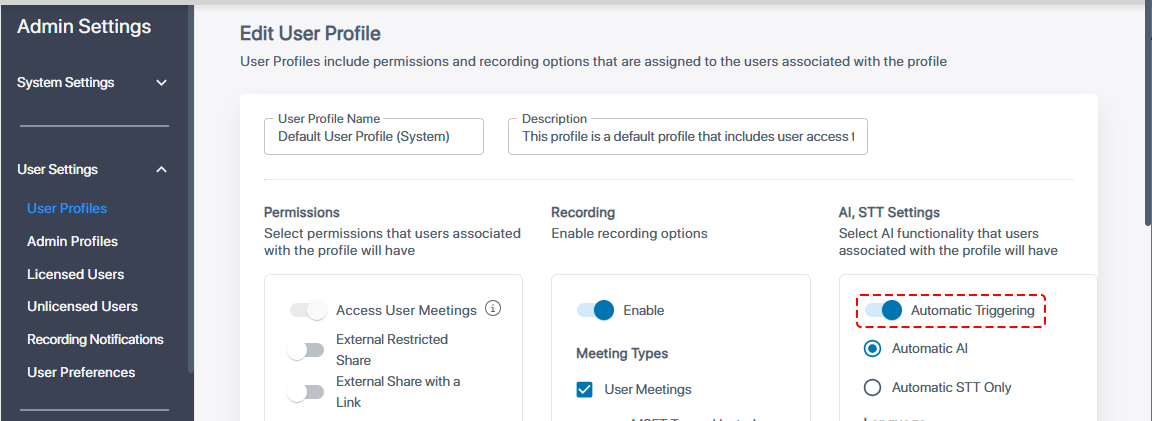
Under the AI, STT Settings group, click the Automatic Triggering toggle switch to turn it on: |
|
4.
|
Under Language, from the drop-down list, select the language. AI languages can be one of the speech-to-text languages (STT) enabled in your application. The following AI languages are currently supported: |
|
●
|
English (United States) |
|
5.
|
Under Insights, select the insights you want automatically generated by AI, by clicking the corresponding check boxes: |
|
●
|
Summary (select any of the following): |
|
6.
|
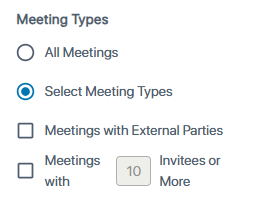
Select whether to automatically trigger AI on all meetings or specific meeting types: |
|
●
|
All Meetings - triggers AI on all meetings. |
|
●
|
Select Meeting Types - triggers AI on specific types of meetings: |
|
◆
|
Meetings with External Parties: Triggers AI only for meetings with external invitees. |
|
◆
|
Meetings with n Invitees or More: Triggers AI only for meetings with a specified number of invitees or more. |